
Digitális praktikumok
Slow phone? 5 steps before buying an Android or iPhone
Reviewing storage, selectively clearing the cache and checking for updates may help a sluggish phone. Here is how to work through these steps on Android and iPhone, and which common habit intended to speed things up is worth dropping.
2026-11-20 · 5 min read
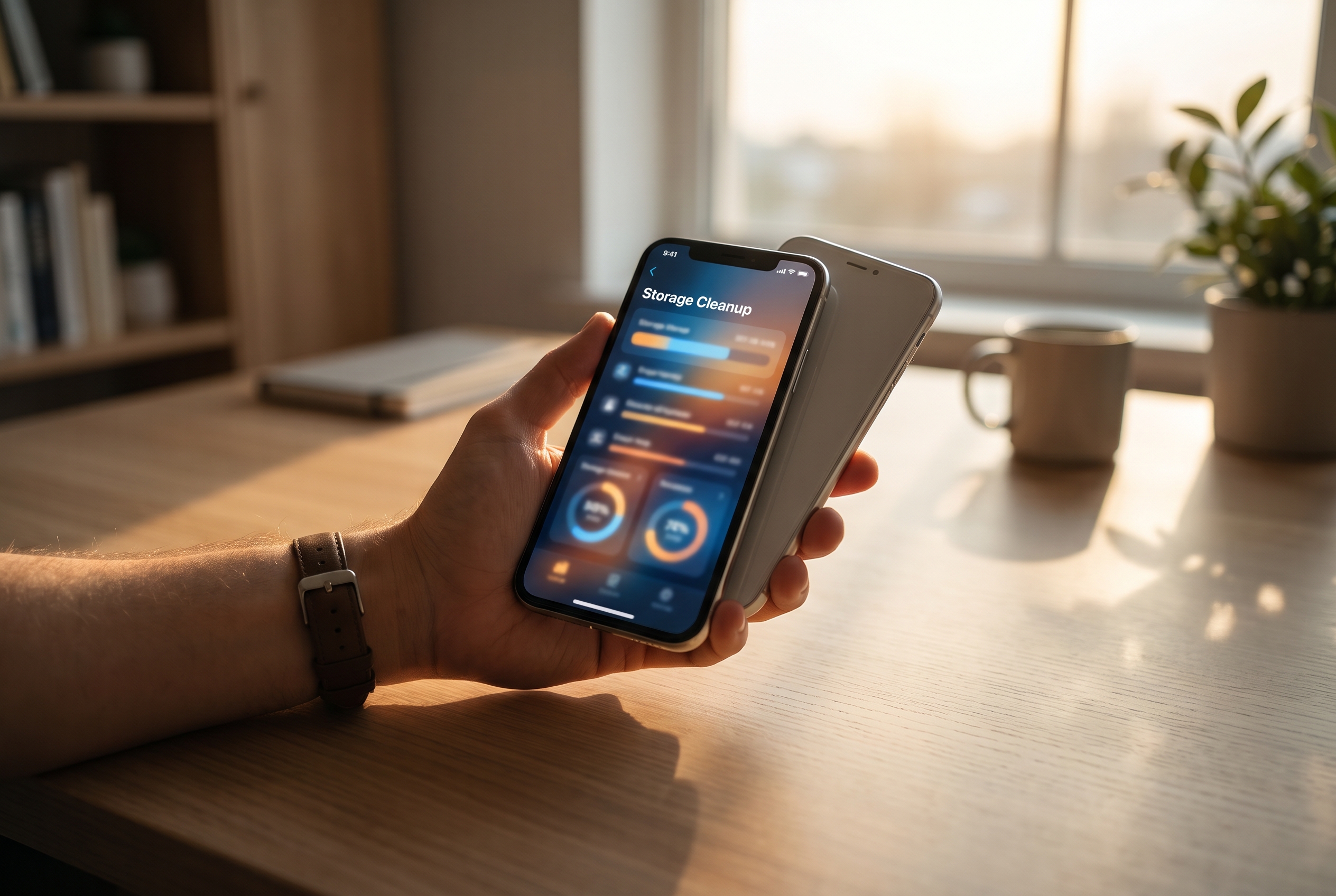
If you try to speed up your iPhone by constantly closing all your apps, you could have the opposite effect, warns Apple’s support guide. Before choosing a new phone, it is worth checking your storage, troublesome apps and updates in turn. The following five steps promise no miracles, but they will help you work through the maintenance options systematically.
1. Restart, then identify exactly what is running slowly
Start by noting when you notice the slowdown: in the phone’s menus, when opening a particular app or while using it? Do not change every setting at once. Working step by step makes it easier to judge which action has improved things.
On Android, it is worth starting with a simple restart: Google’s help guide for slow Android devices lists this among the possible solutions. Look for the restart option in the usual power menu; if you cannot find it, follow your device manufacturer’s instructions. At this stage, you need to restart the phone, not perform a factory reset.
On iPhone, you can also try switching the phone off and back on as usual, then opening the same app that was giving you trouble. Treat this as a check, not a guaranteed speed boost. Also note whether the sluggishness persists in just one app: that is where you should focus first in the following steps.
2. Start with the storage breakdown, rather than deleting photos straight away
According to Google’s guide to freeing up storage, a shortage of free internal storage can cause performance problems on Android. Apple’s guide recommends keeping at least 1 GB of storage free to help an iPhone run properly. That is a good reason to check what is actually taking up space before deleting anything.
On Android, find the storage section in Settings and review the largest apps, along with files you no longer need. Menu names can vary between devices, so do not try to follow a screenshot from another phone exactly. Google’s guide to improving performance also recommends uninstalling apps you do not use.
On iPhone, find the iPhone storage section in Settings. According to CNET’s storage management guide, browsing data and message attachments can also take up considerable space. It is therefore worth reviewing these as well as your photos.
According to Apple’s explanation, the Offload App feature removes the app itself but keeps its documents and data. If you choose this option, read the explanation on the screen so you do not confuse it with deleting the app and its data entirely. Before deleting irreplaceable files, it is also worth making a copy and checking that it works.
3. On Android, clear the relevant cache rather than deleting all data
The cache contains temporary files. According to Google’s Android storage management guide, clearing it removes temporary data; ZDNET’s guide explains that clearing an app’s cache alone does not sign you out of your account. Even so, it is important to select exactly the right action.
On Android, find the troublesome app in the section of Settings that lists your apps, then open its storage settings. If available, select the option to clear the cache. Menus can vary by manufacturer; if you are unsure what each button does, stop and consult the help information for your device.
Clearing the cache is not the same as deleting all of an app’s data. Do not select the option to clear data at random just because it promises to free up more space. The aim here is to clear one particular app’s temporary files, not reset all its settings.
According to Engadget’s explanation, the first launch after clearing the cache may take slightly longer because the app recreates its temporary files. Do not judge the result solely on that first launch. Also try repeating the action that was previously slow.
On iPhone, do not look for the same per-app menu found on Android. Stick to the options offered in the storage section or the app’s own data management settings. Based on CNET’s guide, reviewing browsing data and message attachments can be a useful starting point, but always read exactly what will be deleted.
4. On iPhone, do not close every app in an attempt to speed things up
According to Apple’s support guide, closing an unresponsive app may be appropriate, but unnecessarily force-closing other apps can slow things down: they have to reload their data when opened again. Dealing with a frozen app is different from routinely closing every app.
On iPhone, do not expect clearing everything from the app switcher to improve performance. If one app is unresponsive, deal with that app, then check how it works after reopening it. There is no need to close all the other apps one by one simply to try to speed up the phone.
On Android, do not assume this iPhone-specific recommendation applies in every situation. Restarting and removing unused apps, as suggested in Google’s help guide, are better starting points for troubleshooting. If the same single app remains sluggish, it is worth looking separately at its settings and support options.
5. Check for updates, then test with the same task
According to Macworld’s guide to speeding up an iPhone, bug fixes included in system updates may help with performance problems. However, this does not guarantee an improvement on every device. Treat updating as one step in your checks, not a miracle solution.
On iPhone, find Software Update in Settings and read the information about the available version. On Android, it is similarly worth checking the system update option and following your manufacturer’s instructions. Before installing, check that you have a usable backup of your important data.
Finally, return to what you observed in the first step: open the same app and perform the same action. Check not just whether the menus seem faster, but whether the actual problem has gone away. If you notice no improvement, write down what is still slow and what you have already tried.
Before buying a new phone, identify the specific problem. If your device is comfortable to use after maintenance, you may have a reason to postpone replacing it. If it is still sluggish, take your observations to the manufacturer’s support team or a repair service before changing more settings at random.
Sources used
- 1.If your iPhone or iPad is running slowlysupport.apple.comverified
- 2.How to clear Android phone cachezdnet.comverified
- 3.Adjust these settings to free up storage space on iPhonecnet.comverified
- 4.How to clear cache on Androidengadget.comverified
- 5.How to speed up an iPhonemacworld.comverified
- 6.Hogyan szabadíts fel tárhelyet a telefonban?inspiracio.arukereso.hu
- 7.Speed up iPhone and Macgregdoig.com
These sources were used during our editorial fact check.