
Digitális tudatosság és adatvédelem
3-2-1 backup rule: protect your family photos and files
Two backups alongside the original file, different storage methods and one copy away from home: here is how to build a manageable backup system using an external drive and the cloud.
2026-11-22 · 5 min read
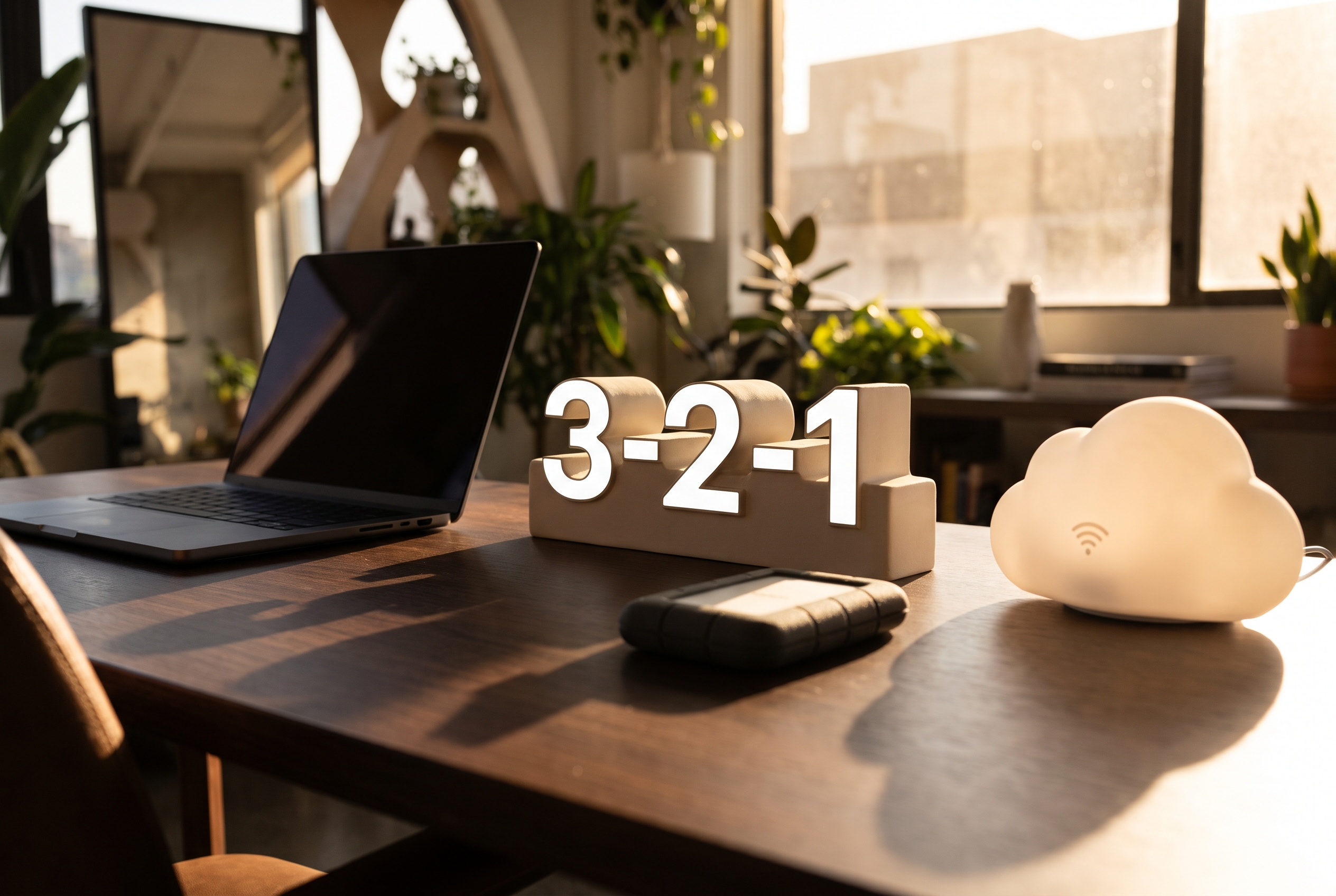
If your family photos are stored only on your laptop, a computer failure could mean losing those memories too. The NIST and NCCoE backup guide recommends the 3-2-1 backup approach, based on keeping multiple copies, to help protect against data loss caused by incidents such as hardware failures and ransomware. At home, you can put this into practice by combining your computer, an external drive and a suitable cloud backup, for example.
The original file counts as one of the three copies
According to Backblaze's explanation, the 3-2-1 rule means three copies of your data, two different storage media or storage solutions, and one copy kept at another physical location. One of the three is the original you use: you do not need to create three additional backups.
- Original: the photos and documents stored on your computer.
- Local backup: a backup of those same files on a separate external drive.
- Off-site copy: a copy held by a cloud backup service, for example.
This is a home example of the local and cloud backup setup described by Backblaze. The aim is not simply to see the same filenames in several places, but to have another copy from which you can restore your data if one copy is lost.
1. Start by listing what you could not replace
Begin with family photos, videos and important documents. Check your phone, your computer and any drives you have used in the past, then make a short list of what you keep on each device.
Create a clear folder structure, with separate folders for photographs, personal documents and your work, for example. You do not need to organise everything perfectly before your first backup: the aim for now is to avoid overlooking a forgotten folder or a set of photos on an old phone.
If you collect your phone photos on your computer, check that you have transferred the actual files and can open them. Do not delete the originals yet; set up and test the backup process first.
2. Choose an external drive with room for all your important files
Before buying, check how much space the folders you want to back up occupy in total. When choosing a drive, consider not just your current files, but also the new photos and videos you will want to add later.
Whether you choose an external HDD or SSD, check its connector, compatibility with your computer and the requirements of your backup software. If your budget is limited, first establish the capacity and features you need, then look for a suitable device; do not limit the files you back up to fit a product you have already chosen.
Backblaze's guide calls for a separate local backup copy. Treat your external drive accordingly, as a backup destination: do not move files onto it and then immediately delete the originals from your computer.
3. Check the folders when setting up your backup
In your chosen backup software, select the folders you want to preserve and set the external drive as the destination. Then start the first backup, wait for it to finish and check the results for any skipped files or error messages.
Set your backup frequency according to how much recent data you could accept losing. The NIST and NCCoE guide also recommends considering acceptable data loss and recovery time in advance; at home, this could mean running an extra backup after processing a new set of family photos, for example.
If you automate the process, continue checking the results. Establish a manageable routine for connecting the drive, checking the backup and disconnecting it.
4. Look beyond storage capacity when choosing a cloud service
According to Backblaze's guide, a local backup can be paired with a cloud copy stored at another location. When choosing a service, do not stop at checking whether it has enough room for your photos: look at how backups and restores work too.
- How can you select the folders to back up?
- Does the service retain earlier versions of files, and under what conditions?
- What happens if you delete a file on your computer?
- How can you restore your data to another computer?
- What options does it offer for protecting access to your account?
The UK Department for Education's cybersecurity guide also emphasises managing access to cloud backups separately. It is therefore worth reviewing who can access your backup and how you would access the account if your usual computer were no longer usable.
5. Do not automatically treat synchronisation as a separate backup
According to NetSys Group's technical overview, file synchronisation alone is not the same as an independent backup. A synchronisation service may also replicate local changes, so you should always assess recovery options based on how the particular service works and how it is configured.
Do not just test whether a new document appears in the cloud. Use a separate test file to check how you can access an earlier version or restore a deleted item, if the service offers these options.
If you want to use existing cloud storage as part of your backup setup, first read the terms covering version history, deletion and retention. A folder visible in the cloud does not, on its own, tell you how to recover yesterday's intact files.
6. Disconnect your external backup when it is not in use
Drawing on NCSC recommendations, the UK Department for Education's guide emphasises the importance of at least one physically or logically disconnected backup copy. With an external drive at home, a simple way to achieve this may be to safely eject and then unplug the device after a successful backup.
Disconnection and a separate location are two different considerations, however. According to Detektor Security's overview, an off-site copy matters because of incidents such as theft, fire or a burst pipe. An unplugged drive kept in your desk drawer is therefore no substitute for a copy stored elsewhere.
7. Test a restore to check that your backup is usable
The 3-2-1-1-0 approach described by Veeam extends the classic rule with an offline or immutable copy and checks to verify error-free recovery. The zero here is a target for recovery testing, not a promise that no data loss can ever occur again.
As a practice exercise, choose a few photos and documents, then restore them to a separate test folder. Try restoring from both the external drive and the cloud, and open the recovered files.
The key to a working home setup is knowing where the originals and backups are, and how to access them if something goes wrong. Start with irreplaceable files, create separate local and off-site copies, and make restore testing part of your routine too.
Sources used
- 1.Protecting Data from Ransomware and Other Data Loss Eventsnccoe.nist.govverified
- 2.3-2-1 Backup Strategycyber-security-hub.education.gov.ukverified
- 3.3-2-1 Backup Ruleveeam.comverified
- 4.3-2-1 Backup Strategybackblaze.comverified
- 5.Célkeresztben az adatbiztonság: Mi az a 3-2-1 adatvédelmi szabály?detektorsecurity.huverified
- 6.3-2-1 Backup Rulenetsysgroup.comverified
- 7.Data Backup Optionscisa.gov
These sources were used during our editorial fact check.
Related Articles



Latest Articles

Zene és Koncert
André Rieu Budapest 2027: concert and ticket information
2026-11-22 · 4 min read

Igényelhető támogatások és kedvezmények
December pension arrives on 2 December: plan to January
2026-11-22 · 4 min read

Magyar film / Mozipremier
Hogyan tudnék élni nélküled? 2. breaks 29-year record
2026-11-22 · 4 min read